Microsoft 365 security misconfigurations represent one of the most critical security risks in modern cloud environments, with Gartner estimating 99% of security breaches result from misconfiguration. This comprehensive guide provides experienced IT administrators with advanced technical strategies, governance frameworks, and compliance management on Microsoft 365 to secure external sharing across SharePoint Online, Teams, and OneDrive while maintaining organizational productivity. Understanding the importance of Microsoft 365 sharing security is essential for safeguarding your data and ensuring compliance with Microsoft 365 sharing security protocols.
The sharing security challenge in modern organizations
External collaboration has become a necessity for business operations; however, default Microsoft 365 settings still focus on accessibility rather than security. On one hand, organizations need secure external collaboration that does not put data protection at risk, and on the other hand, they should not create productivity barriers that drive users to shadow IT solutions.
To effectively navigate these challenges, organizations must prioritize Microsoft 365 sharing security in their collaboration strategies to protect sensitive information.
Organizations must also stay informed about the latest developments in Microsoft 365 sharing security to effectively manage risks associated with sharing sensitive information.
This oversharing epidemic becomes more dangerous with the deployment of Microsoft Copilot, as the security experts point out that “Copilot will take all of the data that it can, including sensitive data.” Consequently, sharing security covers not only compliance but is a business-critical necessity, as AI tools can increase the power of overshared information.
Microsoft Teams sharing governance
Microsoft Teams security governance works through four configuration layers: Microsoft Entra ID for guest authorization at the directory level, Microsoft 365 Groups for group-level permissions, Microsoft Teams sharing governance for Teams-specific capabilities, and SharePoint/OneDrive for file sharing and storage
1. Real-time Teams risk monitoring with TeamsFox
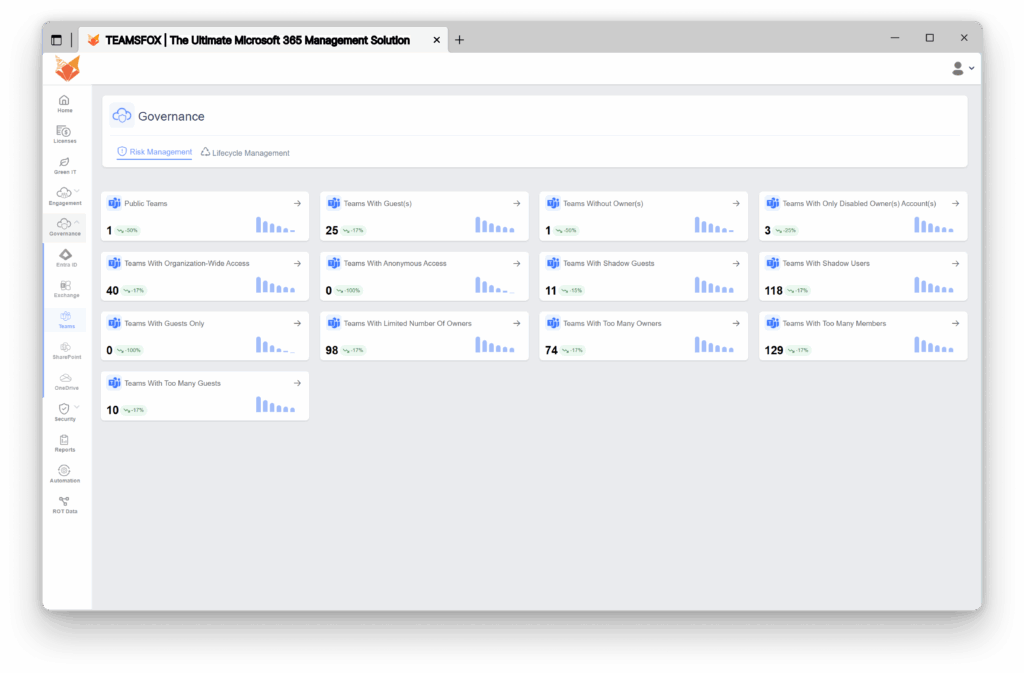
Modern Microsoft Teams security demands continuously keeping an eye on sharing risks that are distributed across multiple dimensions. The TeamsFox platform enables complete visibility into Microsoft Teams security settings through automated risk detection and categorization, which uncovers critical patterns that manual audits tend to miss.
- Teams With Organization-Wide Access:
Permissions in Microsoft 365 sharing security that grant access to content (documents, sites, or folders) to anyone within your organization’s tenant, regardless of whether they were explicitly invited or added to the resource. When content is shared with “organization-wide access,” any employee with a valid organizational account can access, view, and potentially edit the content simply by having the link, without requiring specific permissions or approval from the content owner. This emphasizes the need for strict adherence to Microsoft 365 sharing security protocols to mitigate risks associated with Microsoft 365 security.
- Teams With Anonymous Access:
Anonymous access is the riskiest condition, as anyone with a link can access the content of the Team without being authenticated.
- Teams With Shadow Guests:
Shadow guests are external users who have access to documents shared from Teams or private/shared channels without being direct members of the associated teams or channels. Their access is granted via individual file sharing rather than team membership, leading to potential visibility and governance concerns.
- Teams With Shadow Users:
Shadow users are internal users who have access to content (such as documents or files) shared from Teams or private/shared channels without being members of those teams or channels.
2. Critical risk concentration analysis
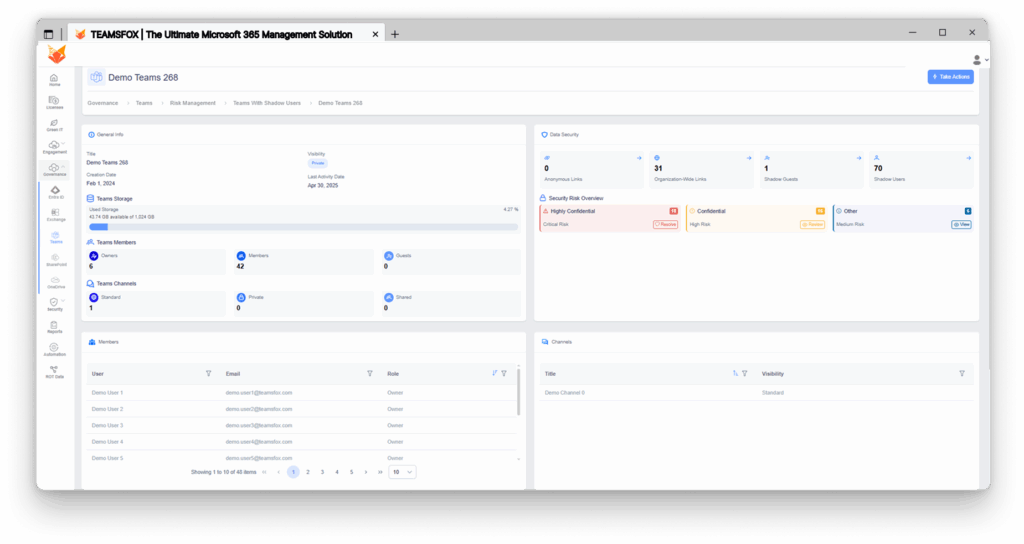
The TeamsFox detailed view reveals multiple converging security concerns, including:
- 31 Organization-Wide Links active
- 70 Shadow Users with active access
- 1 Team With Shadow Guests
- 18 files marked “Highly Confidential” with Critical Risk status
- 16 files marked “Confidential“ with High Risk status
- 6 files marked “Other” with Medium Risk status
This concentration of high-value content (Critical / High / Medium) represents an extreme risk profile that requires immediate investigation and remediation.
3. Risk Classification Details
- Highly Confidential” – Critical Risk:
Files labeled as Highly Confidential are exposed through Anonymous Access, Organization-Wide Links, or shared with Shadow Guests, despite their sensitivity classification. This represents a critical data leakage vector with significant compliance and confidentiality implications.
- “Confidential” – High Risk :
Documents labeled as Confidential have been shared externally via Anonymous Access, Organization-Wide Links, or with Shadow Guests, exposing sensitive business information. While less severe than “Highly Confidential,” this still constitutes a high-level security risk.
- “Other” – Medium Risk:
Documents that do not carry “Highly Confidential” or “Confidential” labels but are accessible through Anonymous Access or Organization-Wide Links. These files pose a medium-level risk, particularly when aggregated or combined with other datasets.
4. Additional Teams risk categories:
- Teams With Guests Only
Teams containing only guest users without internal members indicate orphaned collaboration spaces.
- Teams With a Limited Number of Owners
With 98 Teams having insufficient owners, this creates business continuity risks. Microsoft recommends having a minimum of 2–3 owners per Team to prevent lockout scenarios.
- Teams With Too Many Owners
Excessive ownership (74 Teams) dilutes accountability and increases the risk of unauthorized configuration changes.
- Teams With Too Many Members
Large Teams with 129 instances often indicate scope creep and oversharing beyond the original collaboration intent.
SharePoint Online External Sharing Architecture
As part of Microsoft 365’s collaborative ecosystem, SharePoint Online has specific Microsoft SharePoint external sharing security settings that also apply to Teams and OneDrive. These settings, both sharing and external, need to be configured correctly to maintain the security of the organization’s data.
1. Risk Visibility via TeamsFox
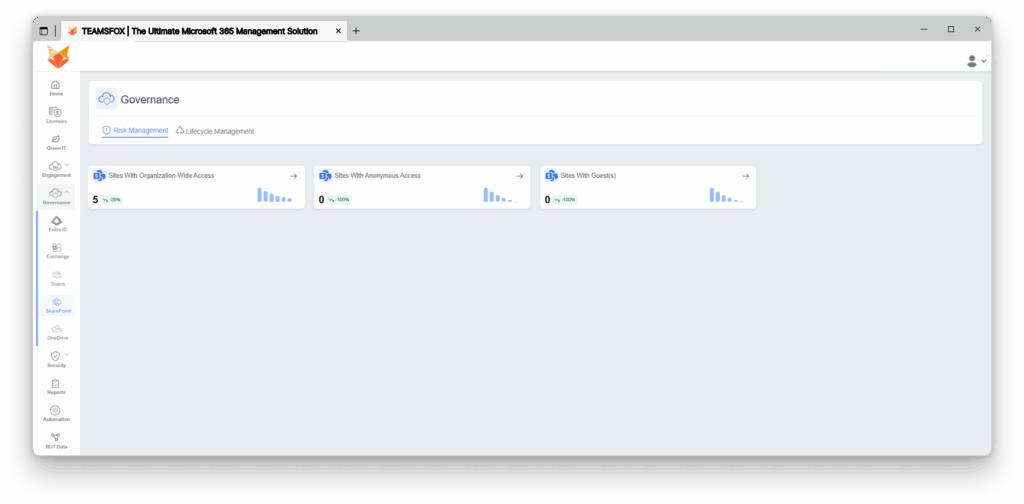
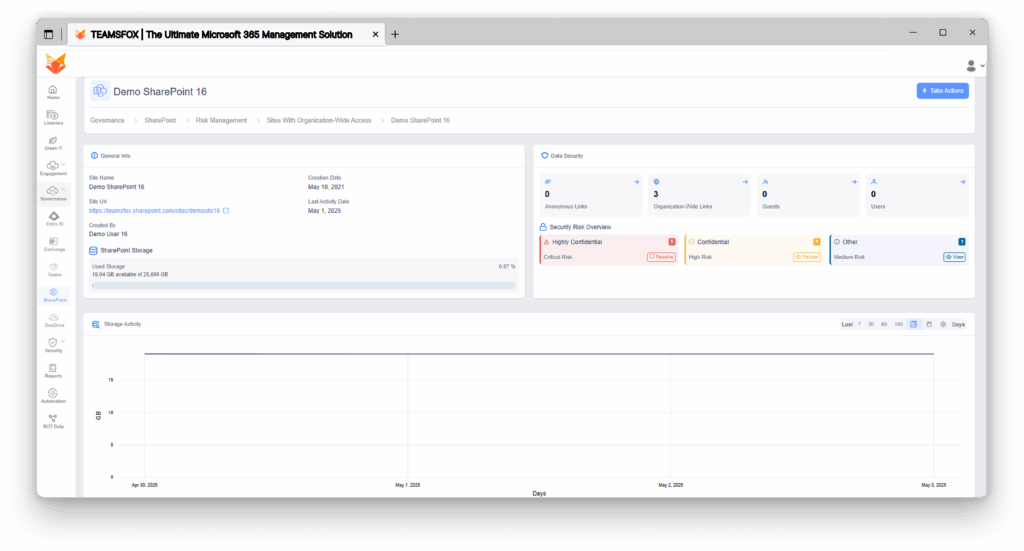
By using automated methods to discover and locate vulnerable sites, TeamsFox identifies critical security risks that require intensive remediation, such as unmonitored and unsupervised Microsoft SharePoint external sharing security risks. Sites with Organization-Wide Access: The TeamsFox dashboard displays five SharePoint sites that grant organization-wide access, each posing critical security risks.
The presence of ultra-sensitive documents that have organization-wide access creates a dire risk situation where individuals, including contractors and temporary staff, in a tenant have unrestricted access to sensitive information.
2. Critical sharing patterns identified
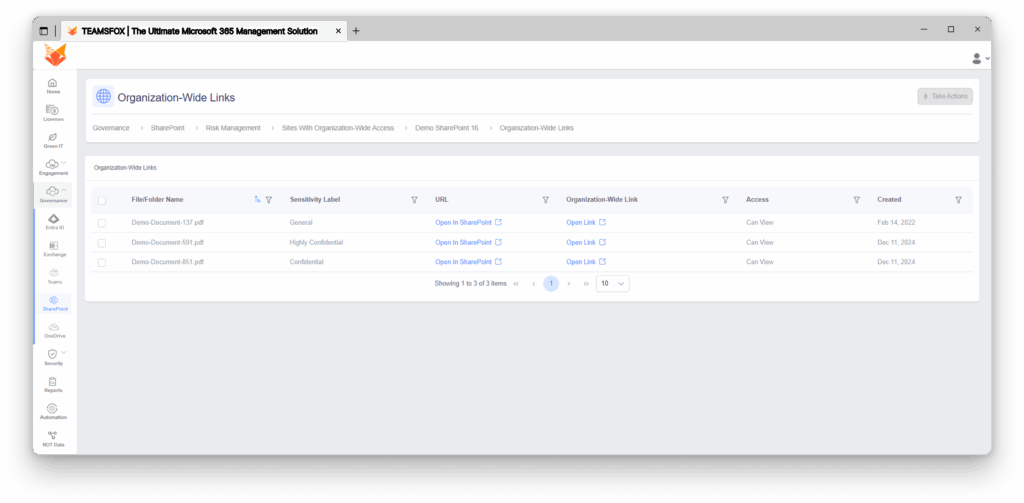
Document marked as Highly Confidential with strictly Can View permissions.
In several cases, many confidential documents restricted to viewing were marked as highly confidential.
Despite the numerous confidential documents revealed to Can View permissions, some Highly Confidential documents were incorrectly marked.
3. Understanding SharePoint sharing Levels
- The “Anyone”:
Allows sharing files with both verified external users and unverified users within the organization. Such accounts can create and distribute links freely. While the range is maximized with such a setting, the risks are quite extreme
- The “New and existing guests” setting:
Requires external users to authenticate with Microsoft accounts or work/school accounts, creating guest accounts in Microsoft Entra ID, and enabling one-time passcode verification for non-Microsoft account users. This sharing level is recommended.
- The “Existing guests only” setting:
Limits sharing to guests already in the organization’s directory, providing better control over external access.
- The “Only people in your organization” setting:
Completely blocks external sharing, suitable for highly sensitive environments, but limits collaboration capabilities.
OneDrive’s Sharing Security Problems
The OneDrive sharing features function within a hierarchical inheritance model where the tenant-level SharePoint configurations create the most permissive boundary. Individual OneDrive configurations can be more restrictive, but never more permissive than the tenant level.
1. TeamsFox Exposes OneDrive Sharing Risks
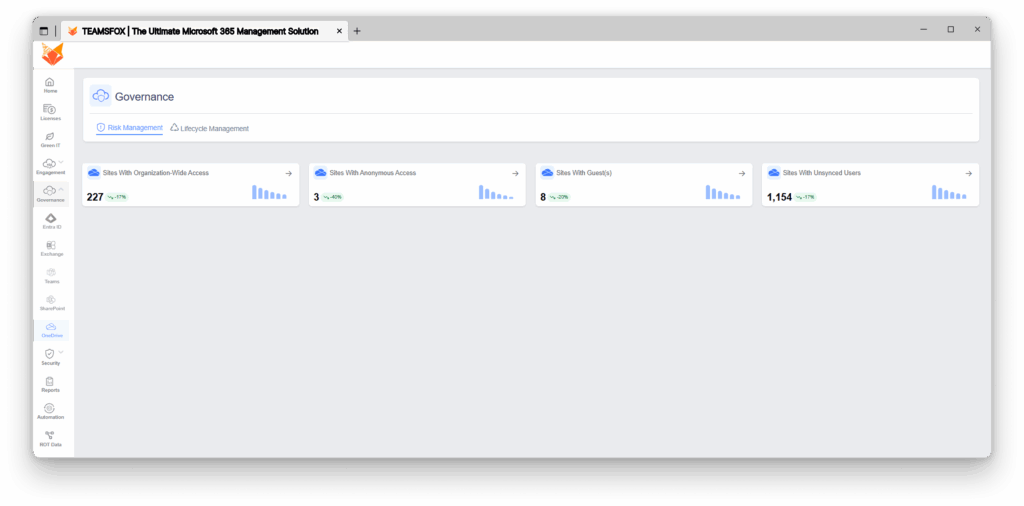
TeamsFox shows alarming transparency into OneDrive sharing risks, vulnerabilities, identifying critical exposure patterns that pose the most significant risk to organizational data.
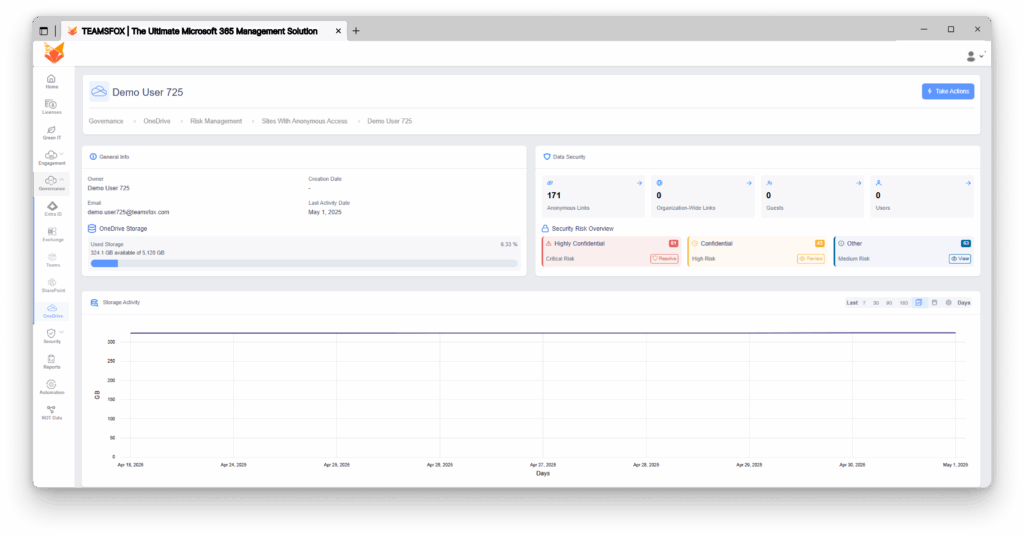
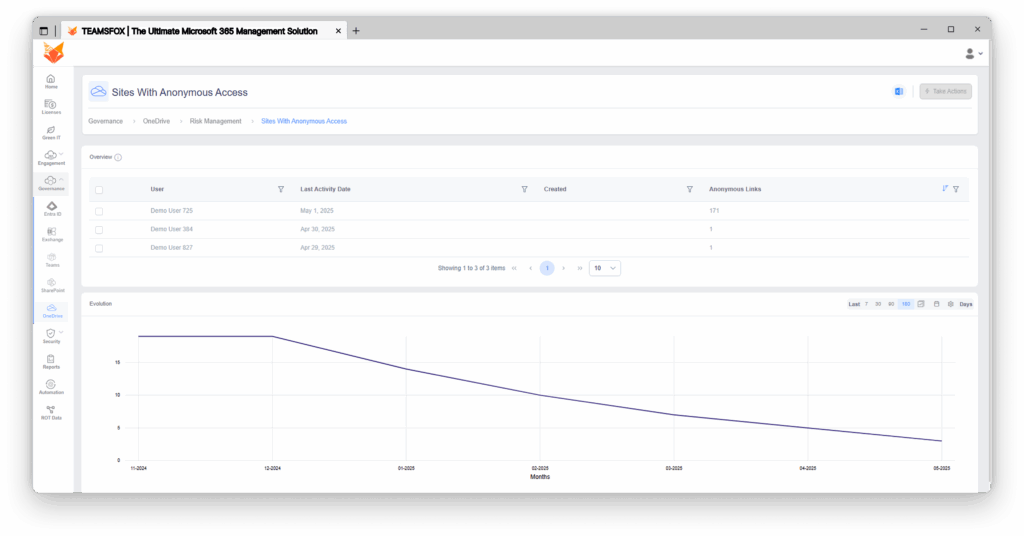
Sites With Anonymous Access – Critical Risk Alert. The TeamsFox dashboard shows three OneDrive accounts that have been flagged as critical risk due to having anonymous access links. The worst case is:
- 171 anonymous links active
- 51 files labeled “Highly Confidential” are at critical risk
- 43 “Confidential” files at high risk
- 53 “Other“ sensitive files at medium risk
This individual’s OneDrive is a total security loss, as the sensitive content is available through anonymous links that can be freely shared without any ability to trace or control access.
2. Analysis of anonymous link timelines
Examining the detailed view of a site’s anonymous links exposes troubling trends:
- Links generated from 2019 to 2025, indicating a 6-year exposure window
- A mixture of confidential and general information is offered up with edit privileges
- No assigned expiration dates for any of the anonymous links
- File types include sensitive documents (.xls, .pdf, .csv) that often include PII or financial data
The Medium Risk Overview, displaying 63 files captured as ‘General’ yet shared through anonymous links, reveals :
- Documents shared from as early as 2019 are persistently available for access
- Documents captured in diverse formats (RTF, JPEG, BMP, DOCX) indicate some business data
- Consistent “Can Edit” permissions indicating modification by anonymous users with no identification
- No lifecycle management or access review appears to have been conducted
3. Conditional Access policies for secure sharing
Such policies enable an organization to define security processes depending on the user’s role, the device being used, the geographical location, and other pre-specified risk parameters. For SharePoint sites, user authentication contexts offer a method to enforce stringent multi-factor authentication, terms of service acceptance, compliant device usage, and reliance on client-grade applications for access, depending on the accessed content’s classification and significance.
Unmanaged device controls offer three protection levels:
- Blocking access completely for maximum security
- Allowing limited web access only, with no download or print capabilities
- Allowing unrestricted access with minimal restrictions
4. Automated protection and sensitivity labels
Sensitivity labels provide automated classification and protection of content. This classification and protection remain in effect even when files are relocated. Their use is not constrained to physical devices, as sensitivity labels encompass the cloud as well.
Apart from restricting the classification of content to documents and emails, labels can also be applied to Microsoft Teams sites, Microsoft 365 groups, and SharePoint sites. This enables unified protection and consistency across various collaboration scenarios.
Container protection settings for team and site containers include:
- Public and private access selection.
- Restriction of access to external users.
- Limitations of external sharing.
- Access control from unmanaged devices.
- Requirements for authentication context.
5. Policies regarding the expiration of links
Setting automatic expiration dates for sharing links reduces risks associated with exposure during prolonged durations. The following are configurable options:
- Links for anonymous users : 0 to 730 days.
- Links for organization members: 7 to 730 days (available starting 2025).
- Links for everyone: Instant to 730 days.
Default recommendations state that most content should expire after 30 days, except long-term projects, which require approval to document.
6. Guest access lifecycle management
Proper guest lifecycle management prevents access accumulation over time.
Key components include:
- Automated guest access reviews every 30-90 days
- Self-service access renewal requiring business justification
- Automatic removal of inactive guests after defined periods
- Integration with HR systems for contractor management
Conclusion: Microsoft 365 sharing security with TeamsFox
To secure Microsoft 365 sharing is inherently complex and demands advanced monitoring and governance beyond the platform’s native tools. As shown in this guide, TeamsFox delivers the visibility and automated risk detection necessary to safeguard collaboration across Teams, SharePoint, and OneDrive. From anonymous OneDrive links to Teams with shadow users, it identifies risks that are nearly impossible to detect with standard administrative tools.
Without such capabilities, these risks persist until a breach occurs. Investing in advanced sharing security not only reduces breach likelihood but also strengthens compliance and sustains productivity. In a collaboration-first world, organizations cannot leave sharing security to chance; continuous visibility and proactive action are essential to collaborate securely and confidently.
Read more :
- Empower Data Governance in Microsoft 365
- What is Microsoft Teams Governance? A Comprehensive Guide to Best Practices